 TradingAlpha
 Create or recover your login
- Open TradingAlpha.
- Choose Set one up if you subscribed but have not created a login. Use the email associated with your purchase.
- Follow the link sent to that email and complete the account steps.
- Sign in using your username or email address.
Forgot your password? uses the same email entry point. Check spam and use the newest email link if an older one has expired. If your purchase uses another email, contact support to resolve the mismatch.
Complete indicator activation
For a first indicator purchase, complete both payment and the DocuSign agreement. Payment alone does not finish activation. After signing, your purchased scripts are granted to the TradingView username supplied for your account.
A returning customer who has already completed the agreement does not need to sign it again for a subsequent purchase. If access is missing, check the agreement, your subscription, and the exact TradingView username before purchasing again.
Check Account
Open Menu → Account in the app, or Account on AlphaX. Review your sign-in identity, linked services, and subscription status. Indicator controls appear when they apply to your account.
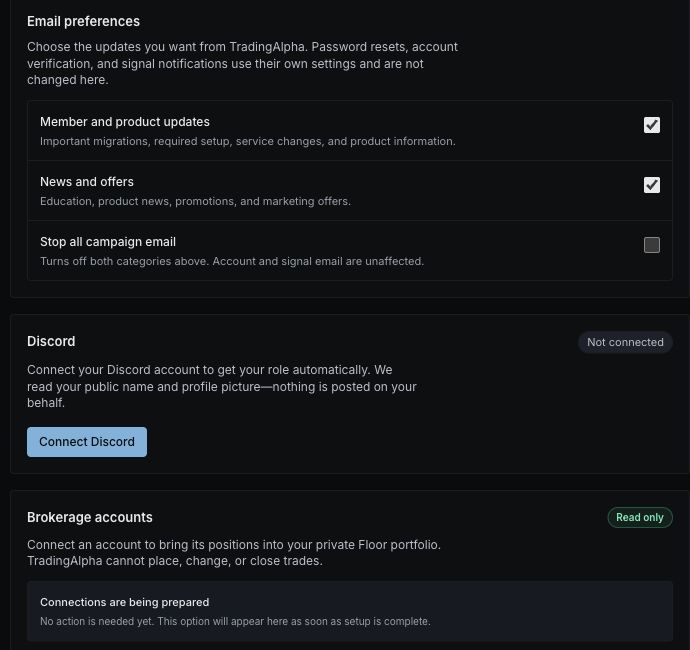
Example account on the live app. Available sections depend on your subscription and enabled features.
A directly managed account can have working access without a Stripe subscription listed. An account that opens only Account may have indicators without Screener access; that is different from a failed login.
Still unable to get in?
Send support the purchase email, the product affected, and the message you see. Do not send passwords or payment-card details. See access troubleshooting.